

Pupil Web Applications
This page contains information related to the external web applications students use both inside and outside of school.
Microsoft 365 – Password Self Service Reset
Pupils are able to reset their own password for their school login once they have set up security questions to protect their account.
Please read this guide for instructions that explain how to setup the security questions on a pupil account.
Once the Pupil has their security questions set, they will need to follow the steps below to reset their Microsoft 365 password:
- Navigate to www.office.com and click the “Sign in” button.
- You will then see the Sign in Screen. click on the link for “Can’t access your account?”
- On the screen asking you “which type of account do you need help with”, click on the “Work or School Account” option
- Once you reach the “Get back into your account” screen, enter the pupil’s email address (format ofUSERNAME@allsaints-academy.co.uk)
- Then enter the text into the Captcha box and click “Next”
- on the next screen, click the radial button for “I’ve forgotten my password” and click “Next”
- Next, enter the answers to the security questions that the pupil will have setup on their account and click “Next”
- You will then see a screen asking you to set your new password twice. Please set your password and click “Next” to continue
- You should then see a confirmation window that your password has been changed. Click on “Click here” to navigate back to the login portal and login in with your new password
- You have now successfully reset your password for Microsoft 365
Office 365 (Includes E-mails, Teams & Streams)
Website: www.office.com
Username: USERNAME@allsaints-academy.co.uk
Password: The password set by the student on first use of the school computers. This is known as the Microsoft 365 password.
For information on how to reset this password, please refer to the information above for Pupil Password Self Service Reset
Memrise
Website: https://app.memrise.com/signin
Username: Should be set to the student’s email address (e.g. 21doejoh@allsaints-academy.co.uk)
Password: The password is set by the student on account creation. To reset the password, please follow these steps:
- Go to the Memrise login portal: https://app.memrise.com/signin
- Underneath the Password box, click on “I forgot my password!”
- Enter the email address used and you will be sent a password reset email.
- Note – If your child cannot remember the email address used, they can create a new account by navigating to the log in portal and click “Don’t have an account? Sign up now!”.
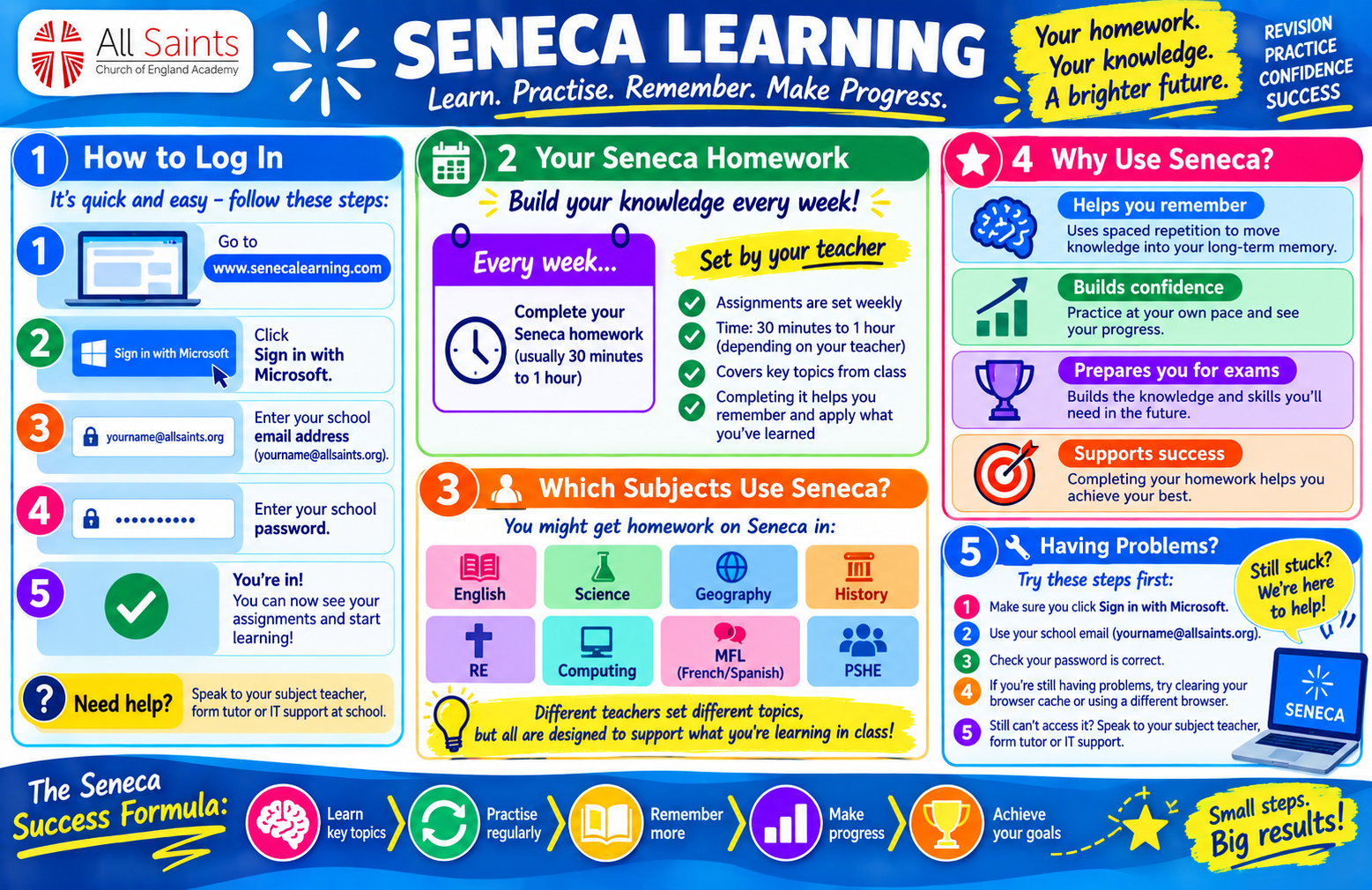
Seneca
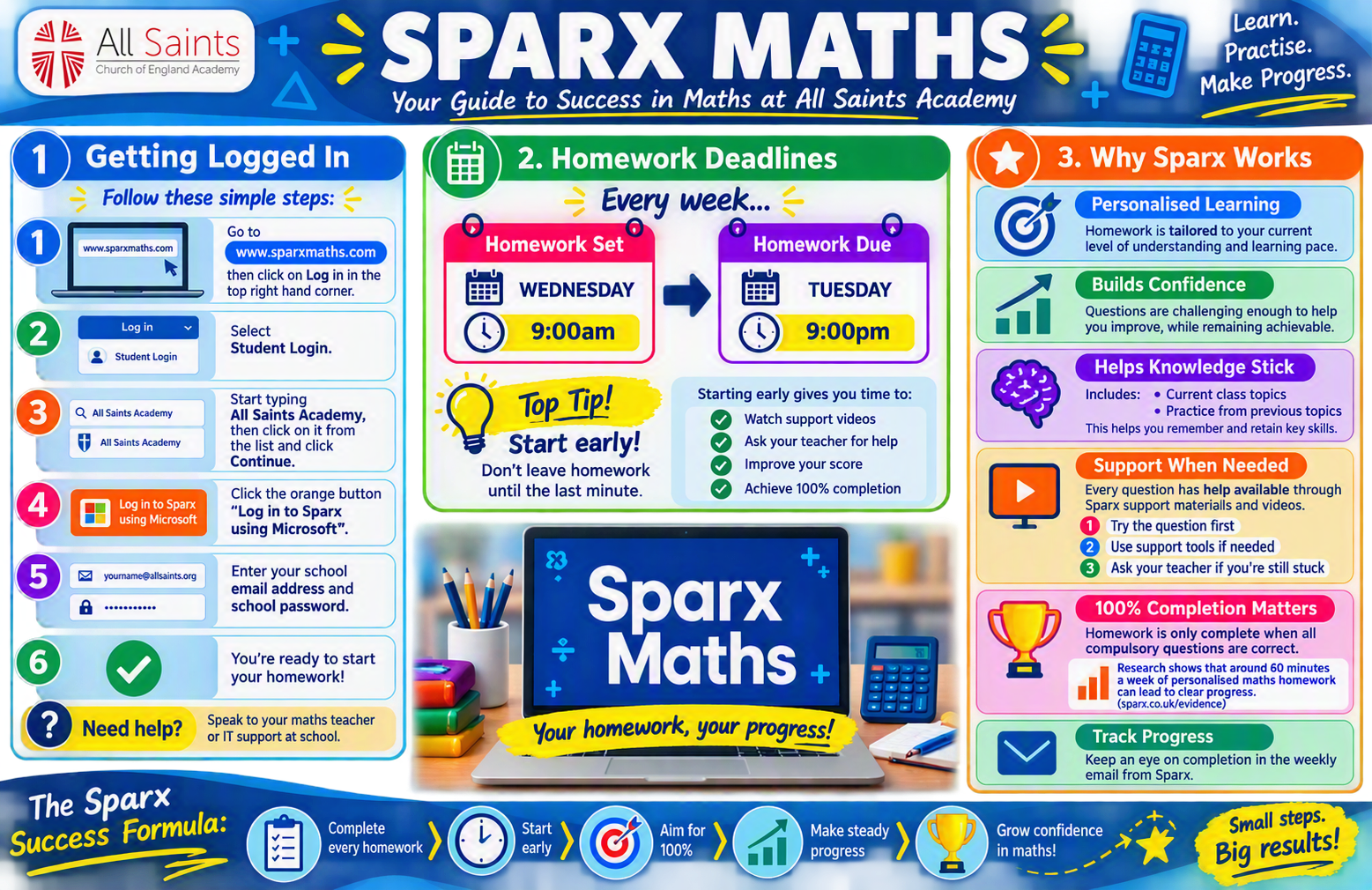
Sparx Maths
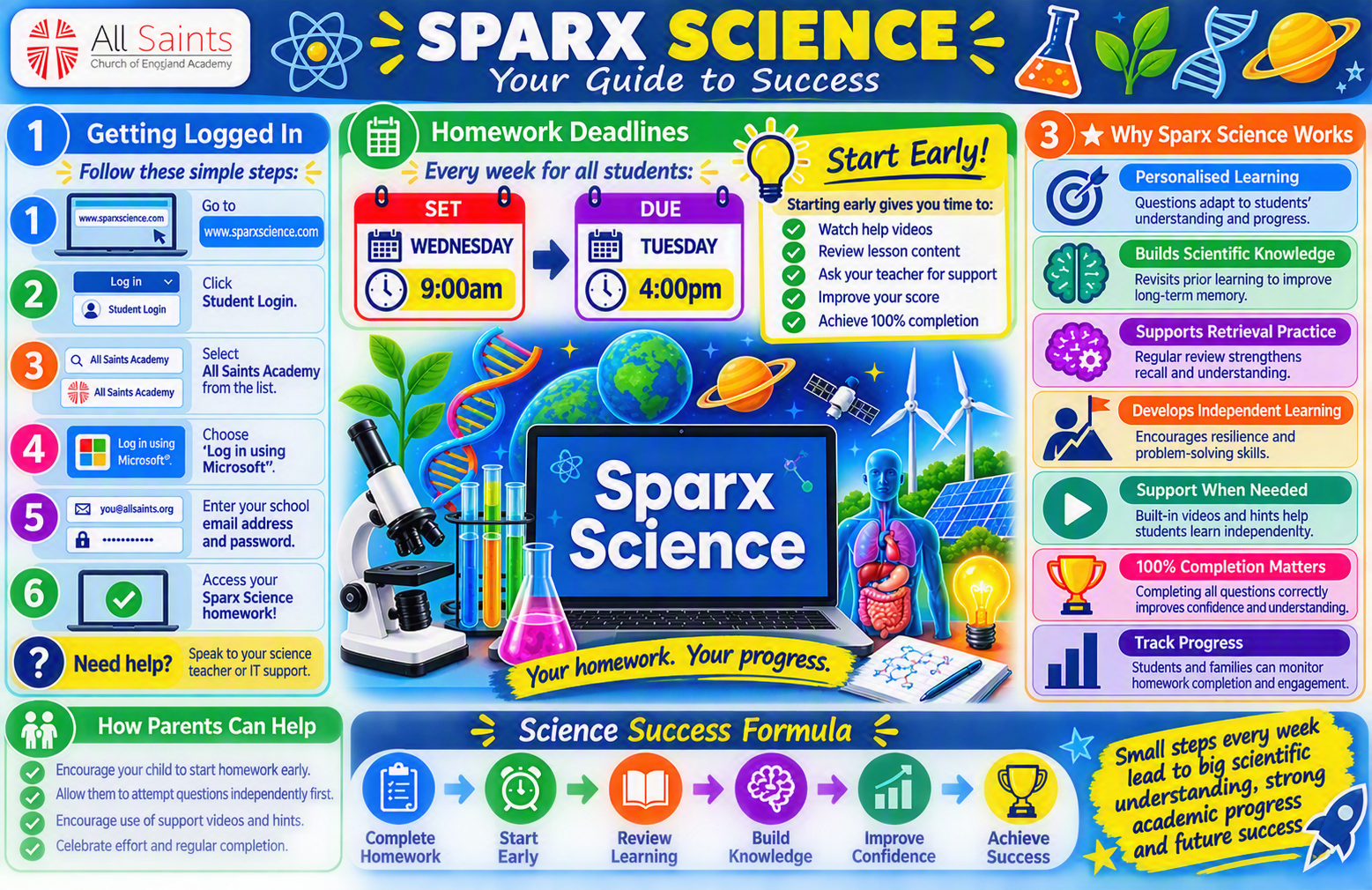
Sparx Science
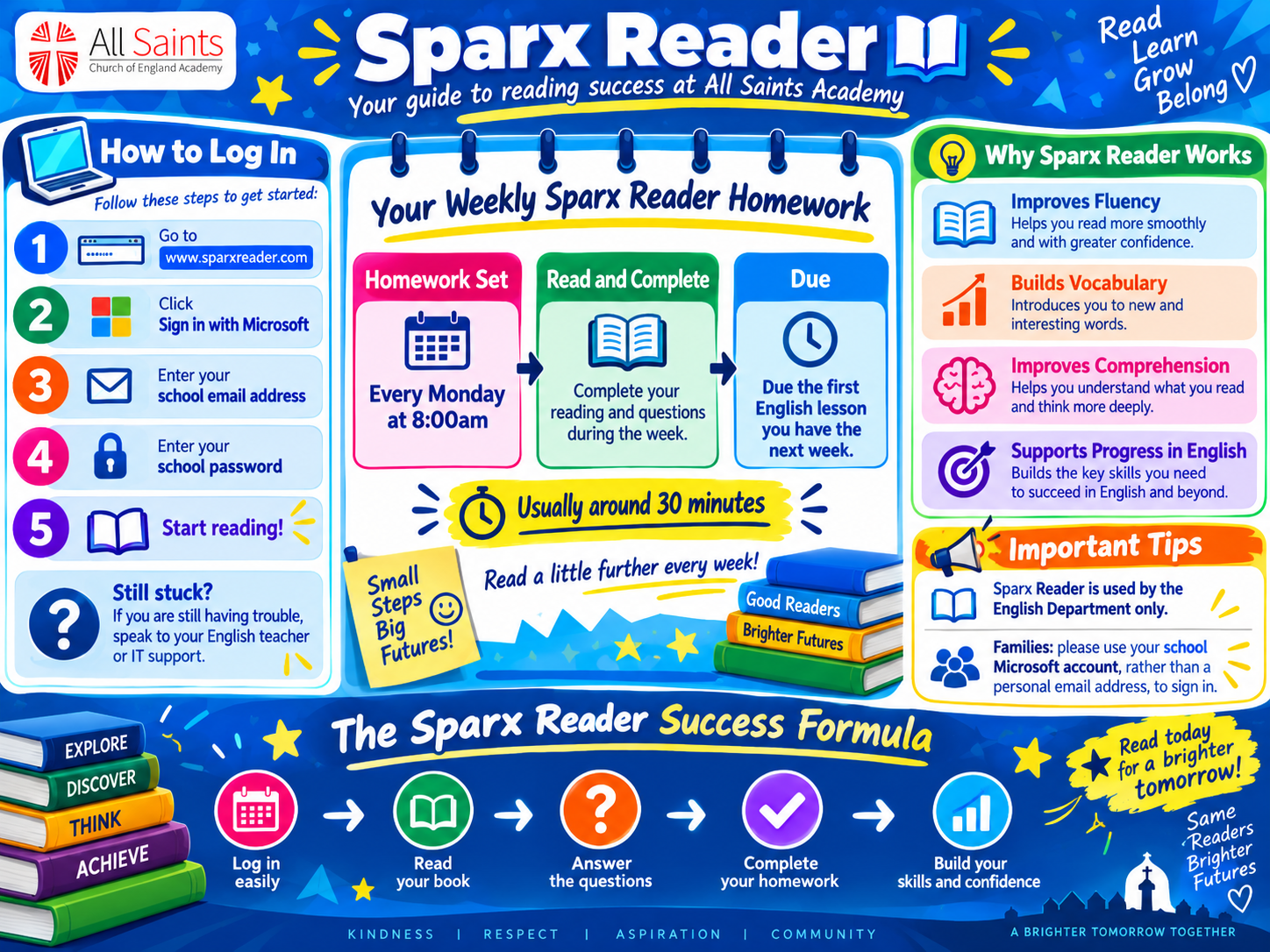
Sparx Reader